Everything You Need to Know to Use the App with Confidence
TravelSafe SOS is a comprehensive mobile application designed to enhance the safety and security of travelers, particularly those exploring regions in Southern Africa and East Africa. By offering real time support and emergency assistance, TravelSafe SOS ensures peace of mind throughout your journey, helping you navigate remote areas confidently while connecting you to trusted responders, accurate location tools, and essential support features tailored for African travel conditions.
Go to the App Store or Google Play on your phone.
Search for TravelSafe SOS or click the links below.
Tap Download to install the app on your device.
Open the app and follow the prompts to register.
Enter your name, contact information, and travel details.
Set up your emergency contacts who will receive alerts if needed.
Allow the app to access your GPS location so emergency teams can locate you quickly.
This feature also helps your emergency contacts track your position if you choose to share it.
Pay a base activation fee of R350 (covers 42 days).
Add-on fees may apply depending on the countries you will be visiting.
Once activated, the SOS feature is live and ready to assist you in case of emergency.
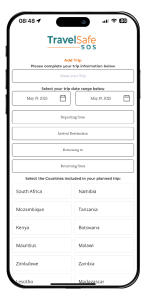
Add your trip details and enter your unique Trip Code.
If booked through an agent: Your travel agent will supply you with a Trip Code to use in the app.
If purchased directly via the app: You will receive your Trip Code via email once your booking is confirmed.
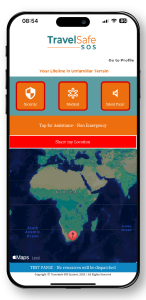
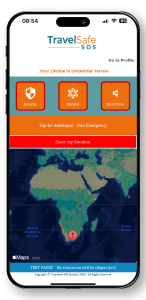
The app features three distinct emergency buttons on the home screen for quick access in different types of emergencies:
Available Emergency Options:
Security
Medical
Silent Panic
These buttons are designed to help you discreetly or urgently request help depending on the situation.
What Happens When You Tap One
After tapping any of the three emergency options, a second screen will appear (as shown in the next image below). This acts as a confirmation screen to avoid accidental activation.
To stop this action, click : Stop Panic / End Emergency
Once pressed:
Your emergency request is sent.
The system will notify the relevant team (Security or Medical) based on your selection.
For Silent Panic, the alert is sent without any sound or notification, allowing discreet help if you’re in a dangerous situation.
TIP: Make sure your emergency contacts and location permissions are enabled in settings to ensure a fast and accurate response.
Tap for Assistance (Non-Emergency Support)
Below the emergency options, you’ll find a “Tap for Assistance” button. This is not for emergencies, but for general support requests (e.g., lost documents, missed flights, escort to your car, or other non-urgent issues).
A support team will respond through the app or follow up directly, depending on your setup.
Privacy & Data
TravelSafe SOS uses data like location and contact info to enhance your safety.